
Prediction Game
Game Description
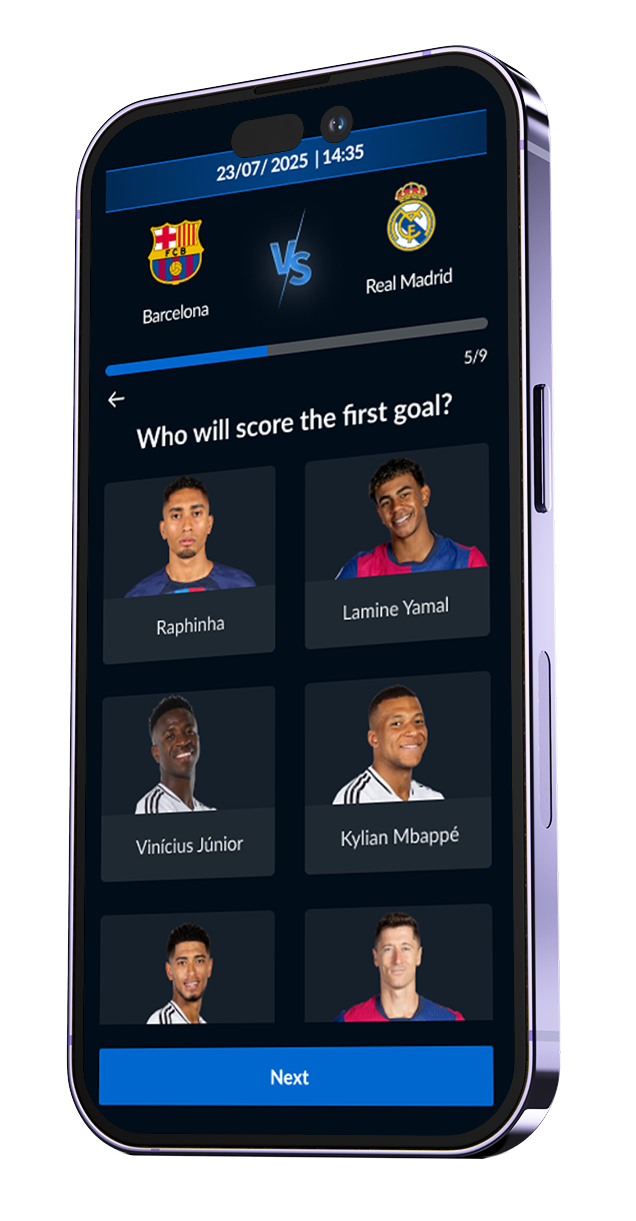
Prediction Game is an interactive game where users predict outcomes for sports matches or events. It allows for both a single deadline or multiple deadlines, making it highly adaptable for different event formats. Participants input their predictions and answers before the set deadline and can compete to see who gets the most accurate results.
Where & When to Use Prediction Game
Live Sports Events: Engage fans by letting them predict match outcomes before or during a tournament.
Multi-Day Competitions: Enable rolling predictions for multi-stage events.
Marketing & Sponsorship Campaigns: Reward users for accurate predictions to enhance engagement.
Esports Tournaments: Let fans predict winners and specific match statistics.
Inspiring Use Cases and Ideas
Football Leagues: Fans predict the final score for each match in a tournament.
Basketball Games: Users guess the point difference or total points scored.
Esports Championships: Predict the winning team, number of rounds, or MVP.
Stock Market or Business Events: Let participants predict stock trends or financial results for fun challenges.
Reality Shows & Awards Ceremonies: Users predict winners of a competition before voting ends.
Customization Options
Start Screen: Prediction Deadline Options
Single Deadline: A fixed deadline applies to all predictions.
When this option is selected, a Countdown Element can be added to the Start Screen.
Countdown Customization:
Countdown Title Text: Customizable text displayed above the countdown (e.g., 'Prediction closes in:').
Countdown Time Labels: Users can edit how time units (months, days, hours, minutes, seconds) appear.
Activation Deadline Text Button: When the prediction time expires, the Next button on the start screen is replaced with this message, notifying participants that the prediction phase has ended (Default text: “Time's Up! See Results”).
Multiple Deadlines: Each event/match has its own deadline, dynamically adjusting to match schedules. This setting is also customizable per question in the Game > Questions tab, allowing different deadlines for different predictions.
Start Screen: Head-to-Head & Image Display
Head-to-Head Mode: Allows comparing two teams.
Enter Team A and Team B names (optional).
Upload team logos (50x50px).
Image Mode: Upload a 600x200px image instead of team names.
None: No team comparison or image.
Custom VS Element Design:
Adjust game date bar color and date bar text color.
Game: Settings
Display Progress Bar: Enabled by default.
Single Event Deadline Text Message: Customizable message displayed when a single event reaches its deadline (Only visible when multiple deadlines are selected).
VS Element Customization:
Color: Choose the color of the VS-styled element.
Image: Upload your own VS image (useful for localization and branding).
Game Date Bar (Only visible when Multiple Deadlines is selected): Choose the color of the game date bar.
Date Bar Color Text (Only visible when Multiple Deadlines is selected): Black or White.
Next Button Text: Fully customizable.
Post Answer Screen Customization:
Button Text: Customizable for next actions.
Questions Tab (Event Predictions)
Users answer specific questions related to an event.
When Multiple Deadlines is selected, users can set a unique date and time for each question, allowing for event-specific prediction deadlines.
Head-to-Head & Image Options for each of the questions (settings similar to the Start Screen).
Question Text: Fully customizable.
Answer Configuration:
Multiple Choice: Predefined answer options. with the option to upload an image (410x250px) for visual answers.
Free Text: Users enter a custom prediction.

Participation Limit: The Prediction Game is designed for a single attempt per user by default. Allowing multiple attempts could compromise the integrity of the game experience.
Games with open prediction deadlines (Multiple Deadlines) will always be displayed first for the participants.
By default, the colors of design elements (VS element, Game Date Bar, and Buttons) are derived from the General Settings. However, these can be customized per game instance.
Tip for Tie-Breaker Questions: Use the Free Text Question option to create a tie-breaker question where participants enter a numerical answer related to the event. For example, in soccer: How many corners will both teams accumulate? This can help determine a winner in case of a tie.
Post answer screen
By default, the Post-Answer Screen is displayed after the user submits a response, showing them the results of all responses so far.
Customizable Post-Answer Button Text: The button text on this screen can be fully customized to fit the activation's theme.
Submit Prediction Results (Game Performance Tab)
The Submit Prediction Results feature is available in the Game Performance tab, accessible after the game setup in the activation builder.
This feature allows the client to manually select the actual correct answers for the predictions.
Once correct answers are selected, a new column, Correct Answer, is added to the Game Performance Table, displaying users' results as correct out of total.
With this data, the client can:
Pick a winner based on the most accurate predictions.
Export the table to an Excel sheet to run a raffle-style selection for prize distribution.
Recommended Media Specs
Media Element | Media supported | Dimensions |
|---|---|---|
Background Image | Image or video | 300 x 200 |
Head-to-Head/image: Team Logos | Image | 50 × 50 px |
Head-to-Head/image: Image | image | 600 x 200 px |
VS element | Image | 115 x 200 px |
Answer Images | Image | 410x250px |
The Prediction Game is a dynamic and engaging tool for creating prediction-based activations. With customizable deadlines, team visuals, and event-specific questions, it offers an immersive experience for users to compete and engage with their favorite sports and events!