
Trivia
Game Description
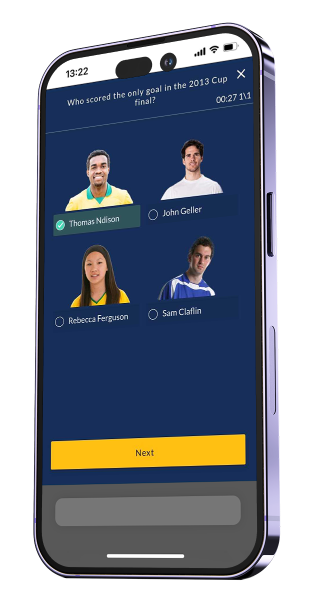
Trivia engages your audience by testing their knowledge in real-time. Fans can answer questions about teams, sponsors, or themed topics, competing for the highest score. This interactive game fosters engagement, drives brand awareness, and encourages friendly competition.
Where & When to Use Trivia
Before, during, or after a game day to keep fans engaged.
Trivia about a team, player, sponsor, or event to educate and entertain.
Brand awareness campaigns, incorporating sponsored questions.
Seasonal or themed activations, such as holiday-themed trivia.
Inspiring Use Cases and Ideas
Trivia about team history before a major match.
Sponsor-branded trivia featuring product-related questions.
A “Fan of the Week” trivia competition.
Trivia for a player's upcoming birthday, featuring questions on their career highlights, achievements, and fun facts.
Customization Options
Settings
Game Type: Choose between "Time for each question" or "Time for entire trivia."
Trivia Time: If "Time for entire trivia" is selected, the timer applies to the full trivia session. If "Time for each question" is chosen, the timer applies individually to each question (default 30 seconds).
Next Button Label: Customizable to match the activation theme.
Questions
Number of Questions: Up to 11 questions per game.
Question Types:
Single Selection & Multiple Selection: Users choose from predefined answers.
Free Text: Users type their answer manually. Setup includes:
Title Text: Customize the question prompt.
Answer Placeholder: Example text guiding users.
Correct Answers: Define acceptable answers, separated by Enter.
Answer Selection: Define correct answers.

Participation Limit Settings (Start Screen Tab)
Trivia allows flexible participation settings, giving clients control over how answers and scores are saved. These settings can be configured under the Start Screen tab.
Limit participation to one time only: Users can be restricted to a single attempt.
If no participation limit is set, then you can choose one of these options:
First attempt (default): Only the participant's first answer or score will be saved.
Last attempt: The most recent answer or score will be saved.
Recommended Media Specs
Media Element | Media supported | Dimensions |
|---|---|---|
Question media | Image or video | 600 × 300 px |
Answer Image | Image or video | 410 × 250 px |
Trivia AI Assistant
Engage Engine’s AI Assistant, powered by ChatGPT, enables an interactive conversation-based experience for trivia creation. Instead of manually crafting questions, users can engage with the AI by providing simple prompts, and the assistant will generate engaging, theme-based trivia instantly.

AI outputs may be inaccurate – review recommended.
Example:
User Prompt: "Create 5 trivia questions about the history of the World Cup."
AI Output:
In which year was the first FIFA World Cup held?
Which country has won the most World Cup titles?
Who scored the winning goal in the 2014 World Cup final?
What was the host country of the 1998 World Cup?
Which team made its World Cup debut in 2022?
Tips for Crafting Effective Prompts:
Write prompts in English for optimal performance. To create non-English trivia, specify the language in the prompt.
Focus prompts on specific themes (e.g., Historical Trivia, Match-Ups, Players, Fun Facts).
Specify the number of questions you wish to generate.
Include difficulty level and answer types in the prompts (e.g., multiple choice, true/false, free text).
For free-text answers, review the 'Correct Answers' field in question settings.
AI Assistant Tokens:
Token balance can be checked in Settings → Company Profile.
If tokens are low or depleted, clients should contact their Customer Success Manager for support.
Post-Answer Screen
Enhance the trivia experience beyond simple answers by utilizing the Post-Answer Screen feature. This additional screen appears after each question, allowing you to display custom text, media, or tailored results to keep your audience engaged, providing a richer and more interactive experience.
Post-Answer Screen Setup:
To enable the Post-Answer Screen, at least one of the following fields must be filled:
Title: A headline or main text for the screen.
Subtitle: Additional descriptive text or instructions.
Media (600×400 px): An image or video to accompany the answer feedback.
Note:
If none of the above fields are populated, the Post-Answer Screen will remain disabled.
Limitations: The post-answer screen is not supported when using the Free Text answer type.