
Users and Roles
Understanding user roles and capabilities is crucial for leveraging this platform effectively. This article reviews the different user roles available within Engage Engine, outlining the specific actions each role can execute.
We'll also explore how these roles can be customized to perfectly align with your organization's unique needs.
Understanding User Roles
Engage Engine offers a structured user role system to manage access and permissions within your account. Here's a breakdown of the available roles:
Owner: This role grants full control over the account, including managing user accounts and transferring ownership to another user.
Editor: Editors wield extensive permissions, allowing them to manage most aspects of the account. They can create and edit campaigns, analyze data, and configure settings, except for managing user accounts (a privilege reserved for the Owner).
Editor (Restricted): This role provides similar capabilities to the Editor role but with some limitations. Restricted Editors can create and edit campaigns, and analyze data, but cannot modify account settings.
Viewer: Viewers have access to reports within the account. They can view data associated with campaigns, activations, and participants, granting them valuable insights without the ability to edit or modify content.
Restricted Viewer: This limited role offers the most restricted access. Restricted Viewers can only view campaign and activation reports, providing a basic level of visibility into campaign performance. Restricted Viewers won’t have any access to users and participants data.

The appropriate role for each user depends on their specific responsibilities within your organization. By assigning the correct permissions, you can ensure team members have the access they need while maintaining control over critical account settings.
Owner | Editor | Editor (Restricted) | Viewer | Restricted Viewer | ||
Campaigns | View campaigns home screen | ✓ | ✓ | ✓ | ✓ | ✓ |
View single campaign data | ✓ | ✓ | ✓ | ✓ | ✓ | |
Manage campaigns | ✓ | ✓ | ✓ | X | X | |
Activations | View activations | ✓ | ✓ | ✓ | ✓ | ✓ |
Manage activations | ✓ | ✓ | ✓ | X | X | |
activations Overview | ✓ | ✓ | ✓ | ✓ | ✓ | |
View activations data (Results) | ✓ | ✓ | ✓ | ✓ | X | |
Publish activations (Tab) | ✓ | ✓ | ✓ | X | X | |
Export Activations reports | ✓ | ✓ | ✓ | X | X | |
Activation Settings | ✓ | ✓ | ✓ | X | X | |
Content Planner | Create and publish posts | ✓ | ✓ | ✓ | X | X |
Social Metrics | ✓ | ✓ | ✓ | ✓ | ✓ | |
Export data | ✓ | ✓ | ✓ | X | X | |
CRM | View participants (CRM) data | ✓ | ✓ | ✓ | ✓ | No access to CRM section |
Export participants data | ✓ | ✓ | ✓ | X | ||
Create views | ✓ | ✓ | ✓ | X | ||
Production | Manage production | ✓ | ✓ | ✓ | No access to Production section | |
Add widgets to production | ✓ | ✓ | ✓ | |||
View production | ✓ | ✓ | ✓ | |||
Media Library | View Media Library | ✓ | ✓ | ✓ | X | X |
Manage media items | ✓ | ✓ | ✓ | X | X | |
Template Engine | Use Template Engine | ✓ | ✓ | ✓ | X | X |
Settings | Profile | ✓ | ✓ | ✓ | ✓ | ✓ |
Company info | ✓ | ✓ | ✓ | ✓ | ✓ | |
General Settings Other | ✓ | X | ✓ | X | X | |
Manage social platform settings | ✓ | X | ✓ | X | X | |
Manage CRM integrations | ✓ | X | ✓ | X | X | |
Profile Menu | Manage media library | ✓ | ✓ | ✓ | X | X |
Manage company users | ✓ | X | X | X | X | |
✓- Editing permission ✓- Read-only permission X - No Access
Engage Engine User Management Interface
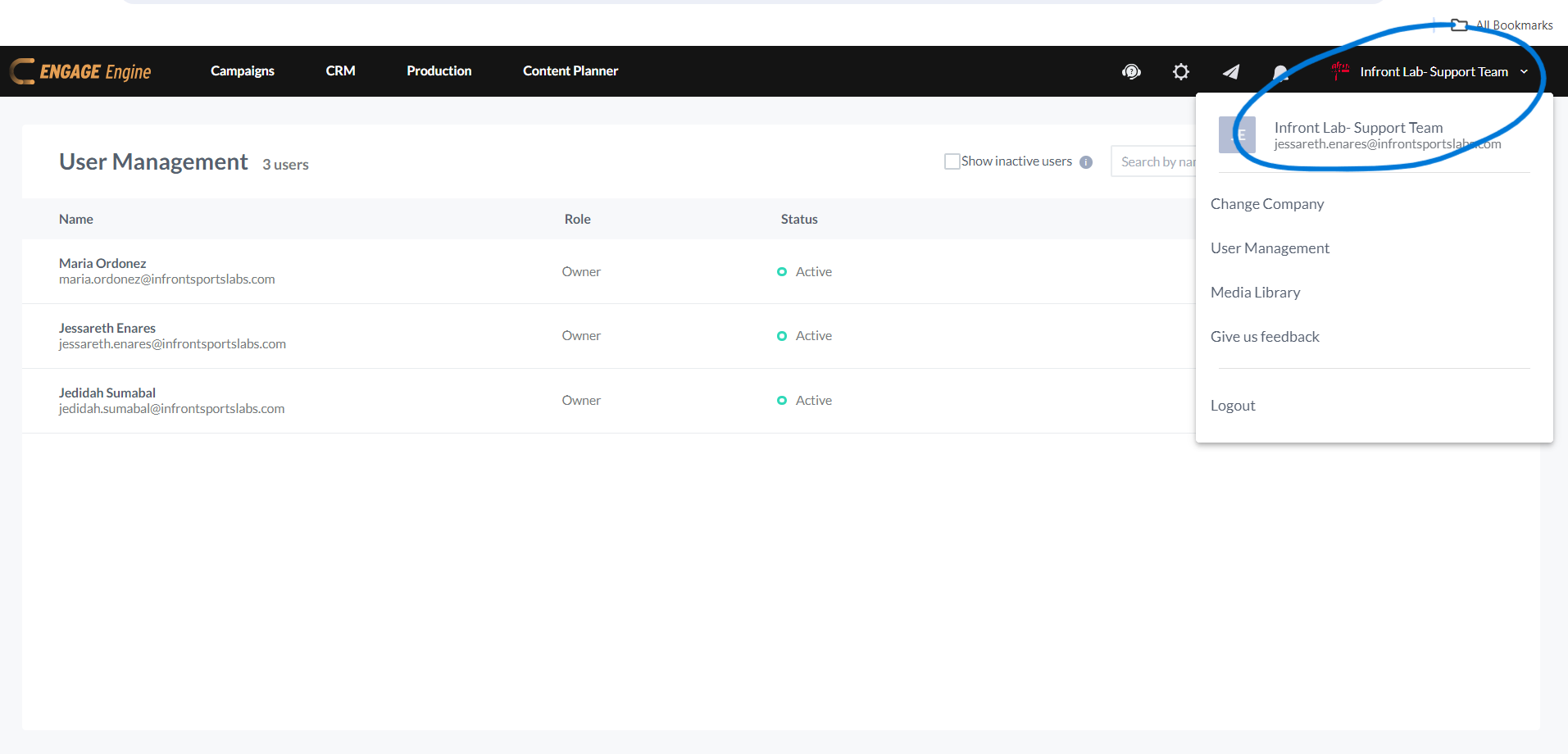
The user management interface within Engage Engine allows you to effortlessly control access and permissions for your team members. To access this interface, simply click the dropdown arrow beside your company name.

Only the “Owner” role has the ability to manage user roles and permissions.
Inviting New Users
This guide provides instructions for inviting new members to Engage Engine.
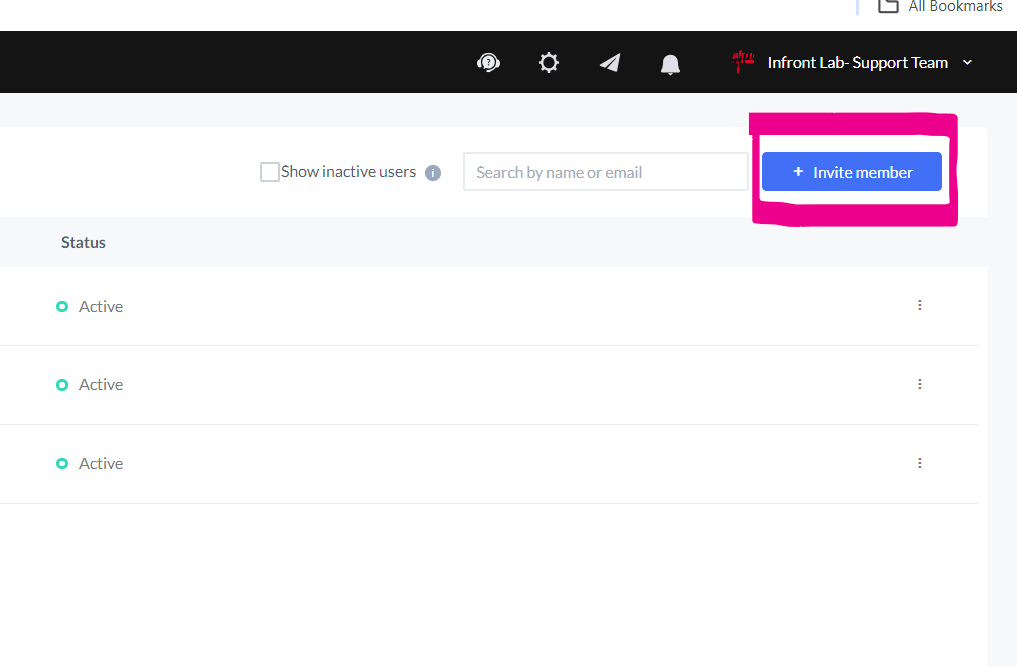
Click "Invite member."
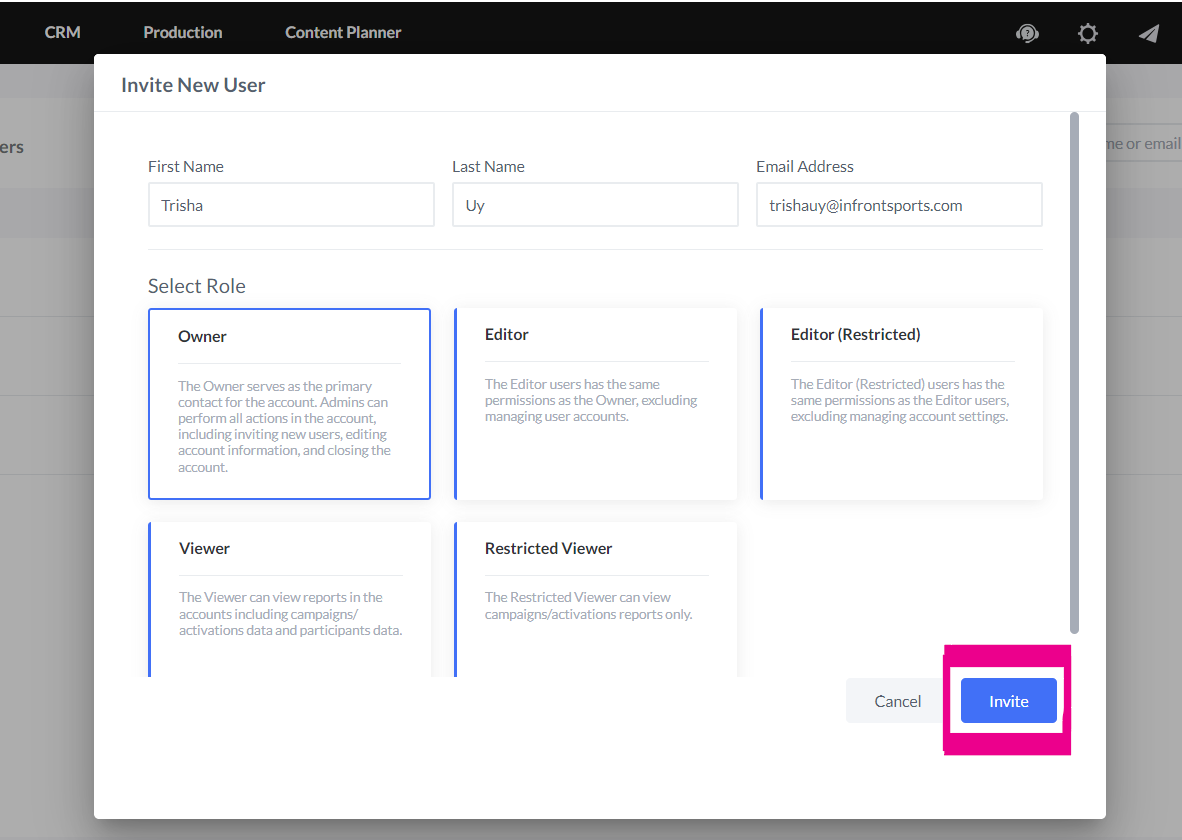
A new window will open prompting you to enter the new user's full name and email address. Select their role from the available options, and then click the "Invite" button (which will become active once all fields are filled).
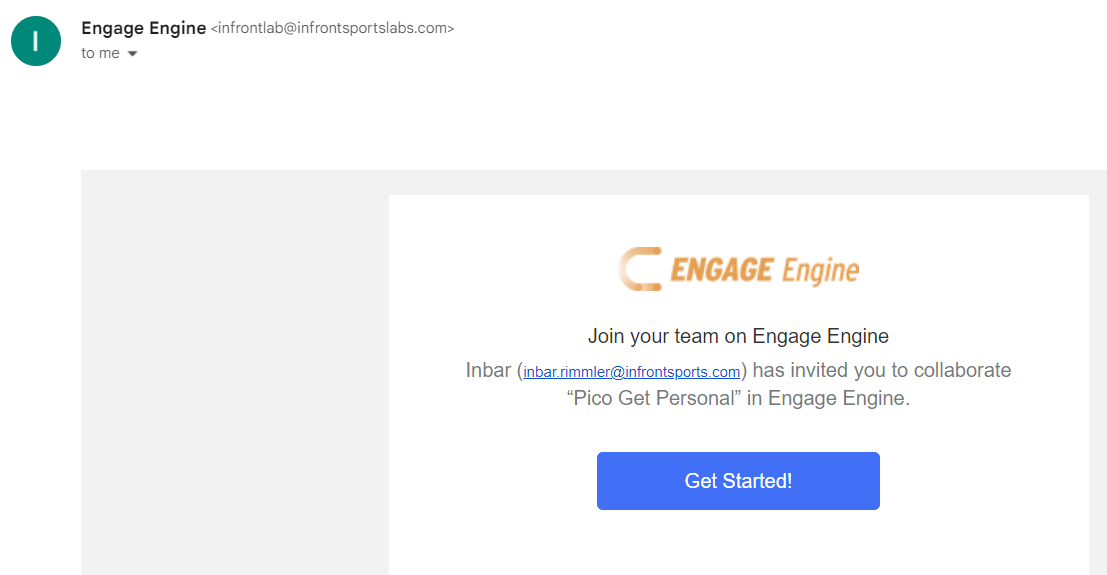
Collaboration invitations are sent via email. Recipients simply need to click the "Get Started" button to begin collaborating on the platform.
Please note that the link provided in the email will expire after 24 hours. To use Engage Engine, be sure to access the link before it expires.
Revoking User Access and Editing Role Permissions
To find this option, locate the three vertical dots displayed on the right side of each user. Clicking these dots will reveal a menu.
To revoke access, select the option “Revoke Access.” This person will automatically be categorized as “Revoked Access” with the option to regrant access if need be
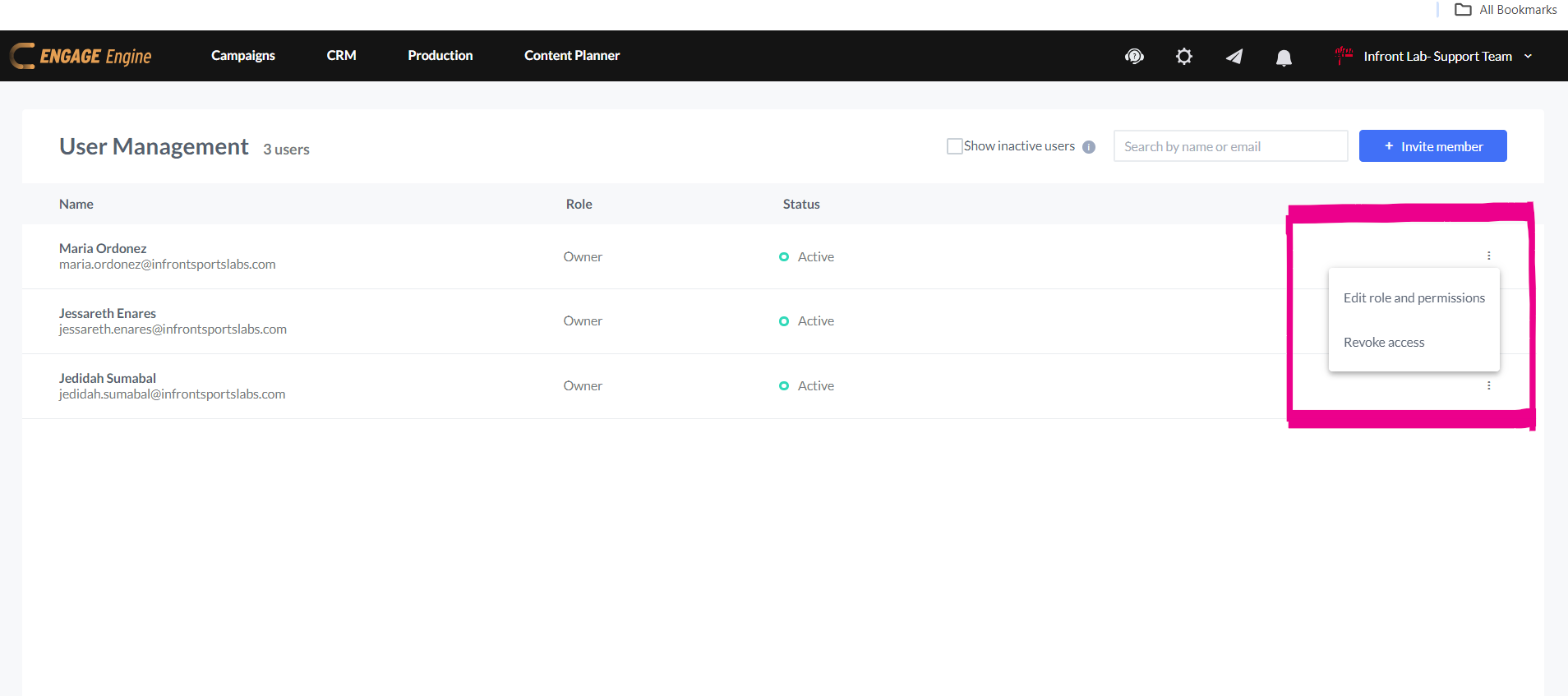
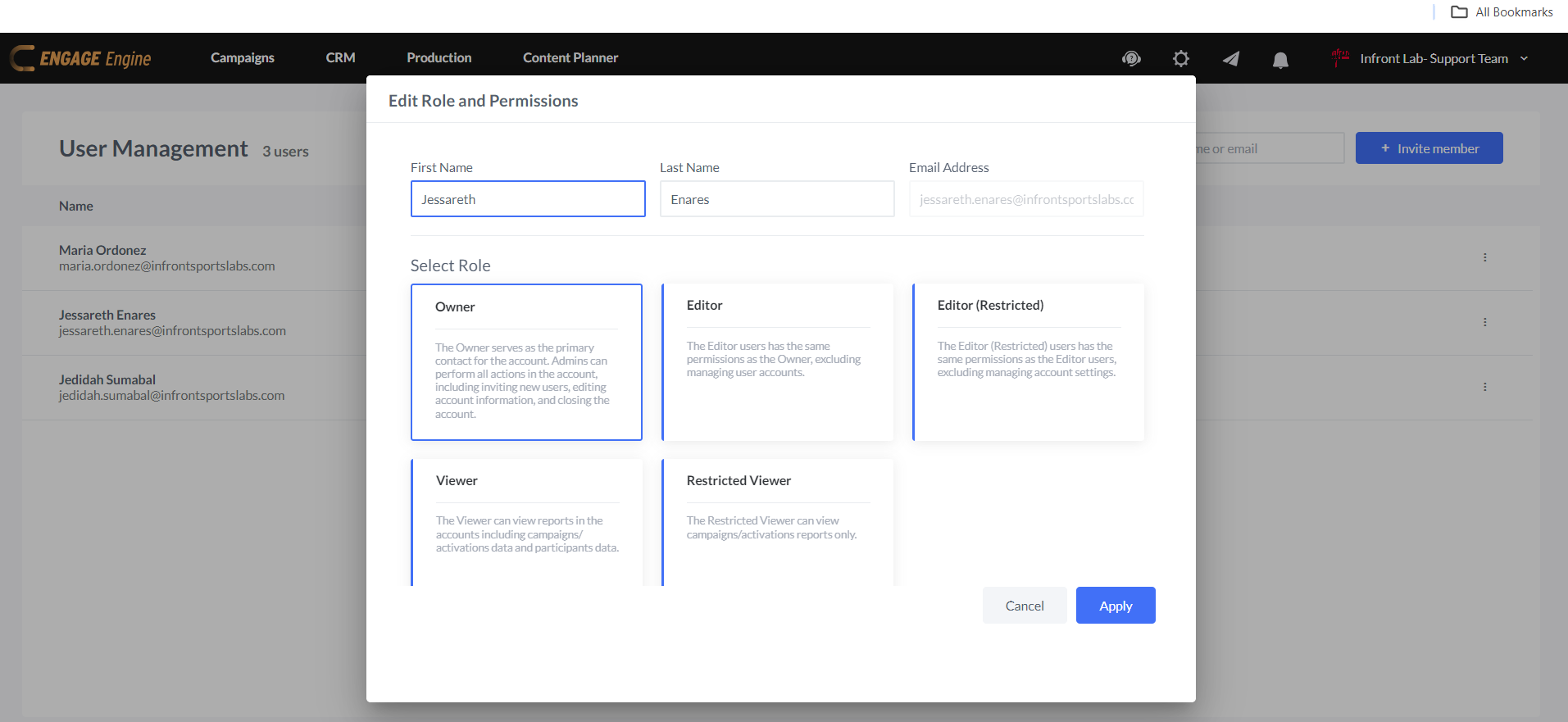
Selecting "edit role permission" will open a window where you'll see the names and email addresses of users. Choose the desired role and click "Apply" to update the permissions.
User Status
Active
An active user is a user who has accepted the invitation and logged into the platform.
For active users, you can modify their role and permissions or revoke their access.
Invitation Pending
A pending user is a user who has not yet accepted the email invitation.
For pending invitations, you can edit roles and permissions, resend the invitation, or cancel it.
Expired Invitation
This status indicates that the deadline for the invitation has reached its end and was not accepted.
Revoked Access
In Engage Engine, revoking a user's access signifies disabling their ability to log in to the account. This action will prevent them from accessing any features or data within your account.
By selecting the 'Show inactive users' checkbox, you can also display users whose access has been disabled and those who have not yet accepted invitations to join your Engage Engine account.