
Conversation Flow and the Canvas Flow Builder
Canvas Flow Builder empowers users to create engaging, dynamic Conversation Flow activations for their audience. This intuitive tool features a drag-and-drop interface, allowing you to visually design complex workflows without writing a single line of code.
Crafting Engaging Interactions with Conversation Flows
The Conversation Flow activation, powered by Canvas Flow Builder, empowers you to create captivating and interactive experiences for your users entirely code-free. This intuitive drag-and-drop interface allows you to seamlessly integrate various elements like messages, mini-games, questions, polls, and image carousels within your flow.
Conversation Flows leverage the power of messenger platforms like Facebook, Twitter, Instagram, or Engage Engine Messenger, acting as a seamless bridge for connecting with your audience.
Explore the step-by-step tutorial below to unlock the potential of Canvas Flow Builder and create engaging Conversation Flow activations.
Adding Games to Conversation Flow
Canvas Flow Builder allows you to easily incorporate mini-games into your conversation flow design. This functionality opens doors for creative engagement strategies.
Show/Hide Widgets based on Data Points
Canvas Flow Builder goes beyond static content. It allows you to configure personalized widgets that dynamically adapt to your audience.
You can set up rules to display or hide specific widgets based on data points collected during the conversation. This empowers you to deliver targeted content and experiences at the most relevant stages of the interaction.
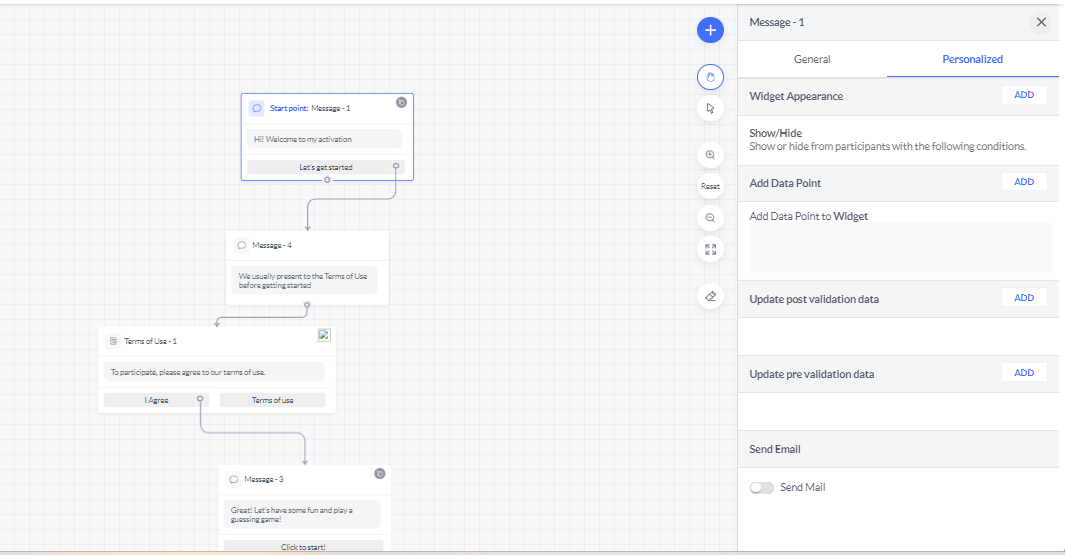
Imagine a scenario where your conversation flow offers a quiz with different answer paths. After completing the quiz and reaching the end screen, a user might choose to re-enter the flow.
Thanks to Canvas Flow Builder's dynamic capabilities, the user won't simply repeat the same experience. Instead, they might be presented with an alternative follow-up question based on their previous answers, creating a more personalized and engaging interaction.
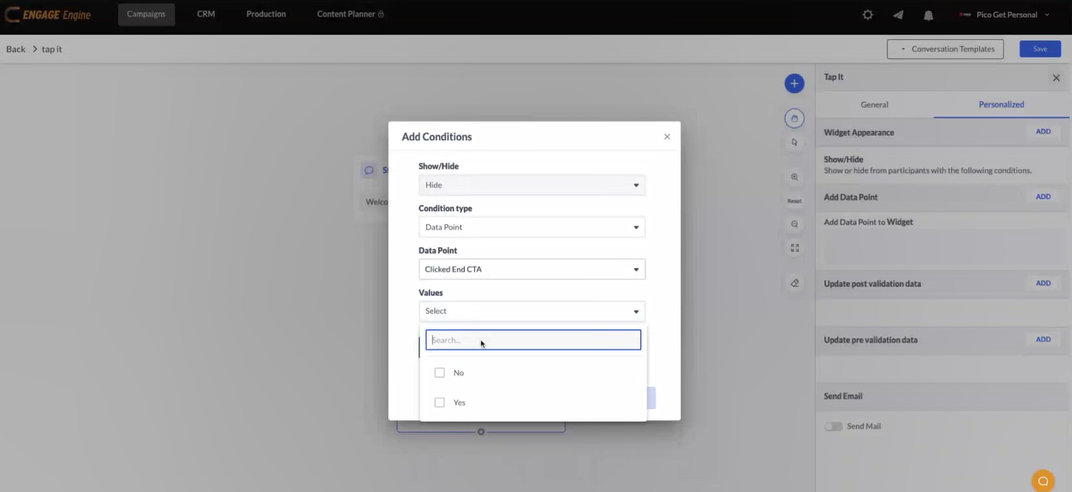
Canvas Flow Builder empowers you to create truly personalized conversation flows. Want to prevent users from seeing the same content repeatedly? You can achieve this by conditionally hiding widgets based on their actions.
Here's how it works:
Select the Widget: Choose the specific widget you want to conditionally display or hide.
Set Up the Condition: Navigate to the "Properties" panel and locate the "Conditional Visibility" section.
Define the Data Point: Select "Data Point" as the condition type.
Specify the User Action: Set the data point to "Clicked End CTA" with a value of "Yes." This ensures the widget disappears for users who have already clicked the "End CTA" button.
Apply the Rule: Click "Apply" to activate the conditional visibility rule.
Ensuring Accuracy: Data Point Validation
The Data Point feature in Canvas Flow Builder incorporates data validation to ensure the accuracy of your workflows. This means the system checks the format of user input to match specific data types.
For instance, when collecting a user's full name, the validation will only accept letters and spaces, preventing the entry of numbers or special characters. Similarly, email addresses require a valid format with an "@" symbol and a domain name (e.g., gmail.com) to be considered valid.
This validation helps maintain clean data within your flows, allowing for smoother operation and more reliable results.
Setting the Widget as Activation End
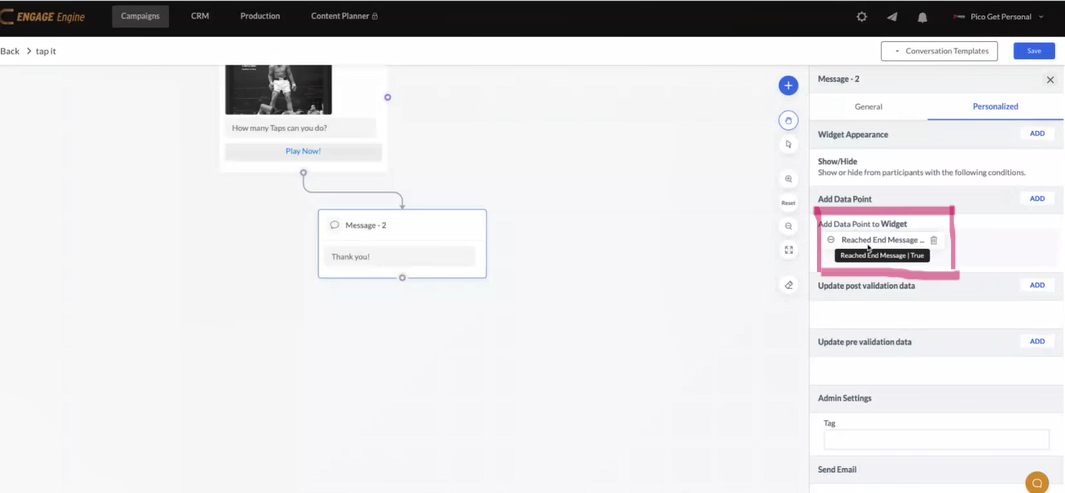
Canvas Flow Builder empowers you to track conversation completion with ease. Simply choose a widget within your flow, like a button or image, and designate it as the "Activation End" in the widget's properties. This action automatically sets a data point signifying the user has reached the end message, indicating they've completed the entire conversation, including any games or interactions. This functionality ensures clear tracking of user journeys and completion rates for your conversation flows.
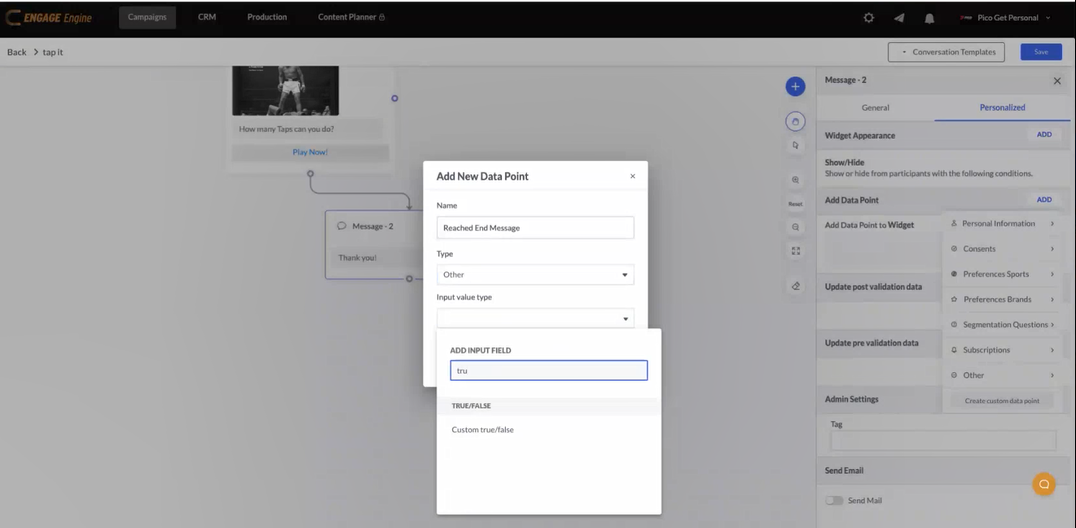
When a user reaches this end message, a data point is automatically recorded, signifying their completion of the conversation flow.
Canvas Flow Builder empowers you to go beyond static content creation. It provides an intuitive interface for crafting dynamic and engaging conversation flows, complete with mini-games, quizzes, and personalized widgets. This not only fosters a memorable user experience but also empowers you to collect valuable data points.
By leveraging the data gathered through these interactions, you can gain deeper insights into your audience's demographics and preferences. This knowledge unlocks the potential for targeted marketing strategies and ultimately allows you to maximize the value of your interactions.
Topic: Canvas Flow Builder
Category: Activations & Competitions
Article Description: A full description of how to use the Canvas Flow Builder, including covering the following topics:
Canvas UX: Action icons, drag and drop, connecting widgets, etc…
Chatbot Widgets (Covering all widgets in the + list) and expanding the following settings of the widgets:
Start point widget
Setting the widget as Activation End
Include widget in CTR calculation
Adding Games to Conversation Flow
Personalized Tab:
Show/hide widgets based on DP and Alternative widgets
Add Data Points for a specific widget
Validations
Best practices and use cases*