
Custom Data Points
Custom Data Points allow Engage Engine users to tailor their data collection to specific needs beyond the predefined Standard Data Points. These data points provide flexibility, enabling clients to capture unique user information that aligns with their business goals and engagement strategies.
Creating Custom Data Points
Users can create custom data points across the platform in various locations, including the Activation Builder, Data Point Management in Account Settings, and anywhere data points can be added or assigned to a flow or a user. The following steps outline the process:
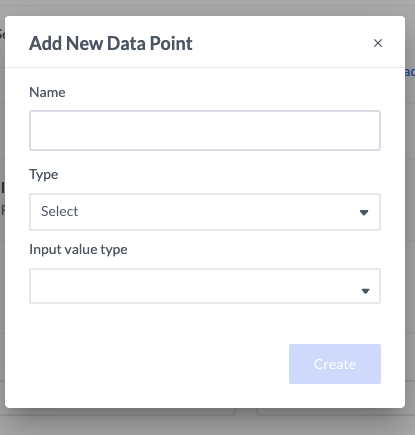
When creating a custom data point, users must provide a unique name for the data point and select a type and input value type.
In the Data Point Dropdown: Click on Create Custom Data Point within the data collection section.
Define the Data Point:
Name: Assign a unique name to the data point.
Category: Select the appropriate category (e.g., User Data, Preferences, Engagement).
Input Type: Choose the format of data collection (e.g., free text, dropdown, checkbox, date selector). See table below for detailed description of input types.
Configurable Options: Custom data points come with configurable settings similar to standard data points, allowing users to adjust input types, validation, and display preferences.
Save & Implement: Once created, the custom data point is added to the available data points and can be used in activations or forms.
Input Value Types
Each custom data point requires an Input Value Type, which determines how users will provide their responses. Different input types offer unique customization options, ensuring data accuracy and consistency. The table below outlines the available input value types and their characteristics:
Input Value Type | Input Appearance in Activations | Additional Input Settings | Validation |
|---|---|---|---|
Texts | |||
First name/Last name | Free short text | - | a. Accepts alphabetic characters in any language b. Accepts dashes (-) c. Can’t contain spaces, numbers or symbols. d. Character length Limit: 30. |
Full name | Free short text | - | a. Accepts alphabetic characters in any language b. Accepts Spaces c. Accepts dashes (-) d. Can’t contain numbers or symbols. e. Character length Limit: 100. |
Free short text | - | a. Must be a valid email address syntax (example@example.com) b. Domain name must be valid. MX records are legit and not a disposable email. | |
Country | Countries dropdown list | Select default country |
|
Phone number | Country selection dropdown + Number input | Select default country | Validating phone numbers format based on country (.i.e: starts with, number of digits) |
Zip Code | Free short text | Text Options:
|
|
Custom text |
|
|
|
Numbers | |||
Age |
|
|
|
Custom numbers |
|
|
|
Date and Time | |||
Date of birth | Day, month and year text input |
|
|
Custom date | Day, month and year text input | Similar to Date of Birth |
|
True/False | |||
Terms of service | Checkbox |
|
|
Custom true/false | Checkbox |
|
|
Best Practices for Custom Data Points
To ensure effective use of custom data points:
Align Data Points with Business Goals: Create only necessary data points that provide actionable insights.
Use Consistent Naming Conventions: Ensure easy recognition and categorization.
Limit Open-Ended Fields: Where possible, use dropdowns or predefined selections for structured data.
Regularly Review & Clean Data: Merge duplicate data points and remove unnecessary entries.