
Getting Started
Introduction
Activation Engine in Engage Engine allows you to create interactive experiences in the form of mini-games, such as trivia, memory game and prediction contests to engage your audience on social media, websites, your app and even in your venue. Within each activation, you have the ability to ask your fans questions about themselves and their preferences, helping you learn more about them as they interact with you digitally.
This guide will provide you with an overview of how to set up your activations, customizing and publishing them.
Connecting Social Networks
To maximize the potential of Activation Engine’s publishing feature, you must connect your social networks and accept all necessary permissions. Without these connections, your ability to create conversation flows and use the different publish features for activations will be limited.
Steps to Connect Social Networks
Log in to Engage Engine.
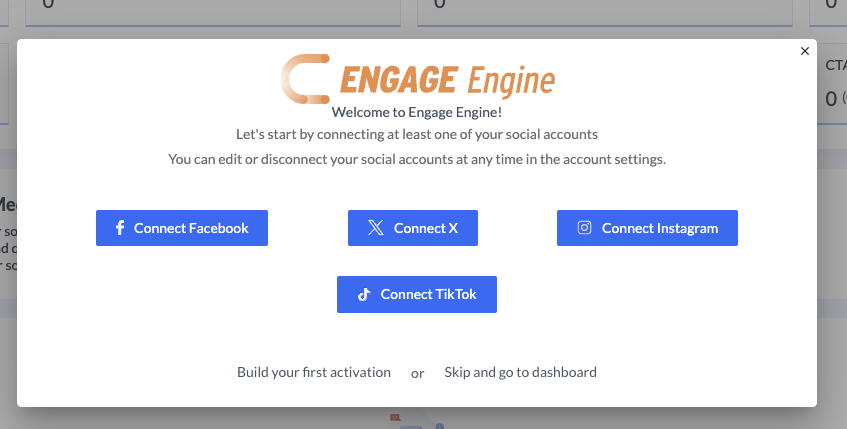
You will see a prompt to connect your social accounts.
Click on any of the following options:
Follow the authentication flow to grant permissions.
Once connected, you can manage these accounts anytime in Account Settings under Social platform settings.
Creating Your First Activation
Step 1: Create a Campaign
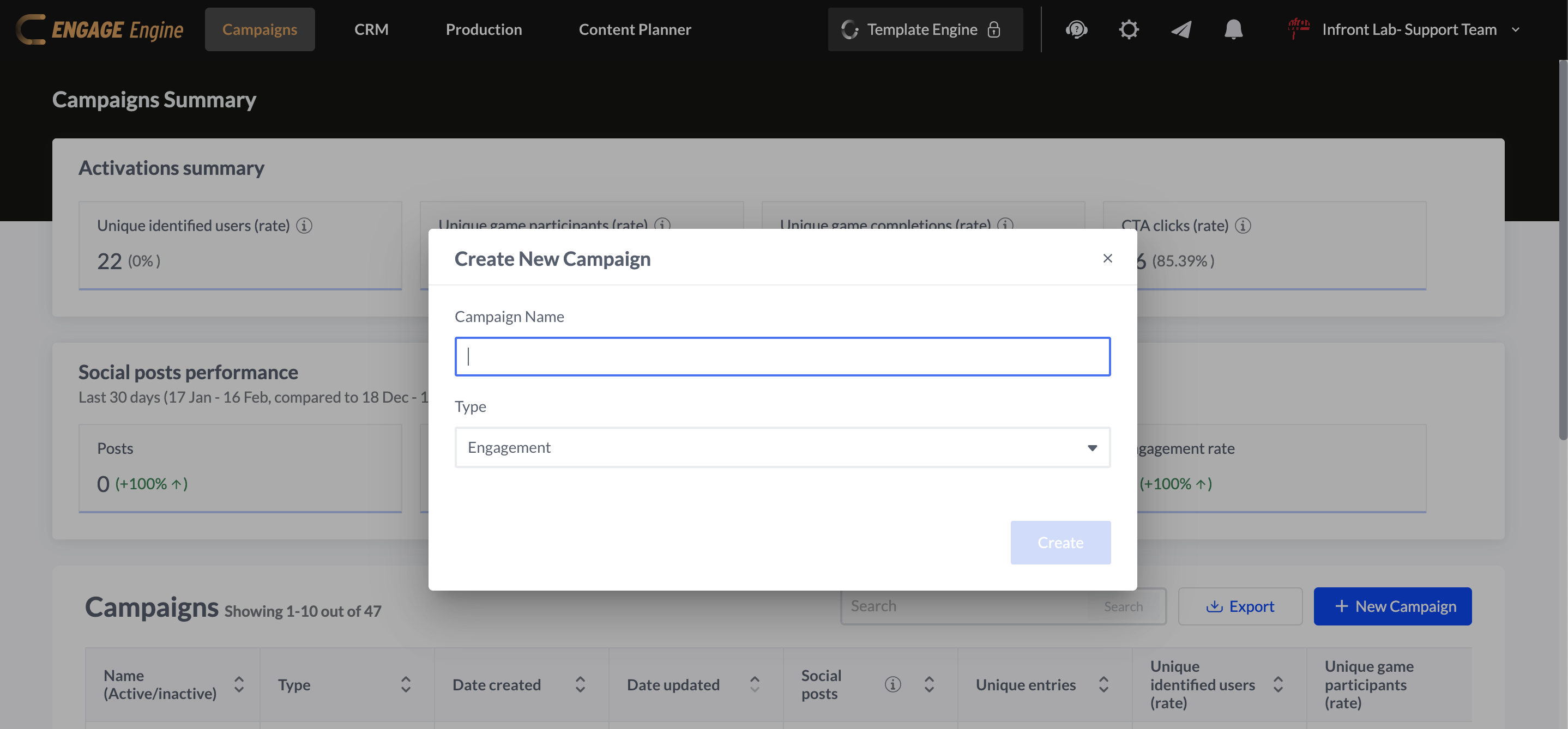
Before selecting an activation type, you must create a campaign:
Click "Create Campaign".
Enter a campaign name and description.
Save the campaign to proceed to activation setup.
Step 2: Choose an Activation Type
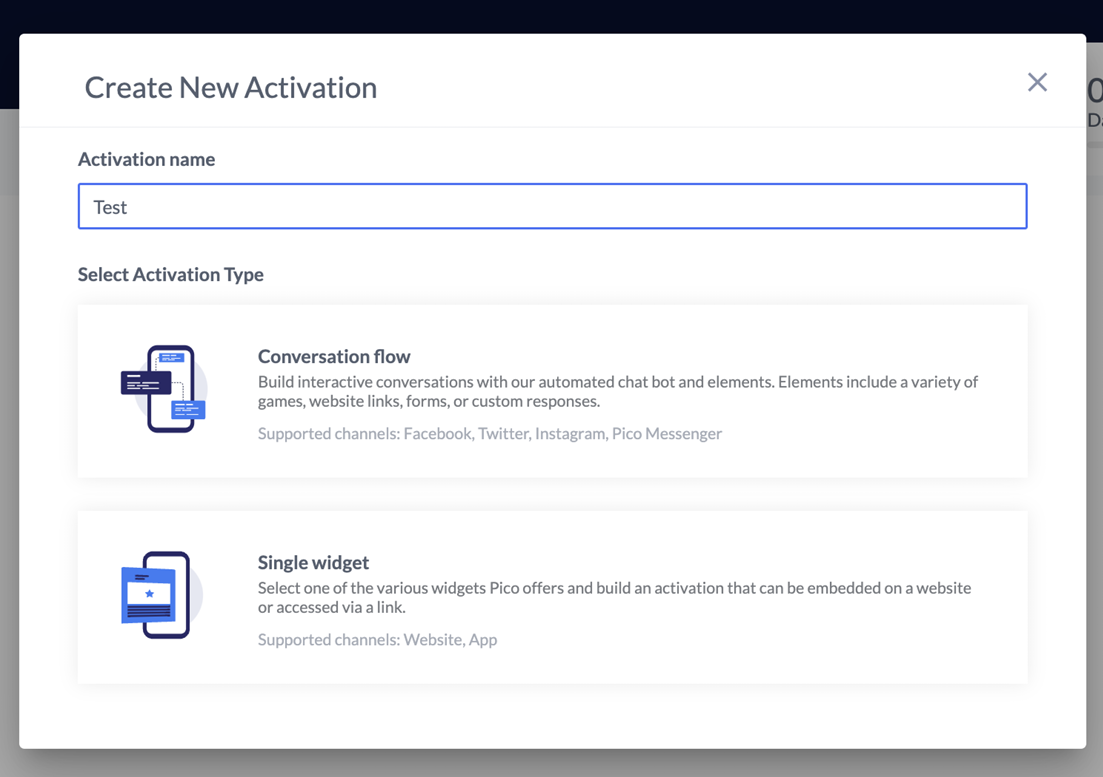
After creating a campaign, you will choose between:
Activation Flow – A structured conversation flow leading users through an interactive experience.
Single Widget – A standalone activation from a selection of 20+ pre-built games.

Learn more about performance tracking in Activation Types.
Step 3: Configure the Activation
If you choose Activation Flow:
You will enter the Canvas Builder where you can design the interaction steps.
Drag and drop elements to structure the user journey.

If you choose Single Widget:
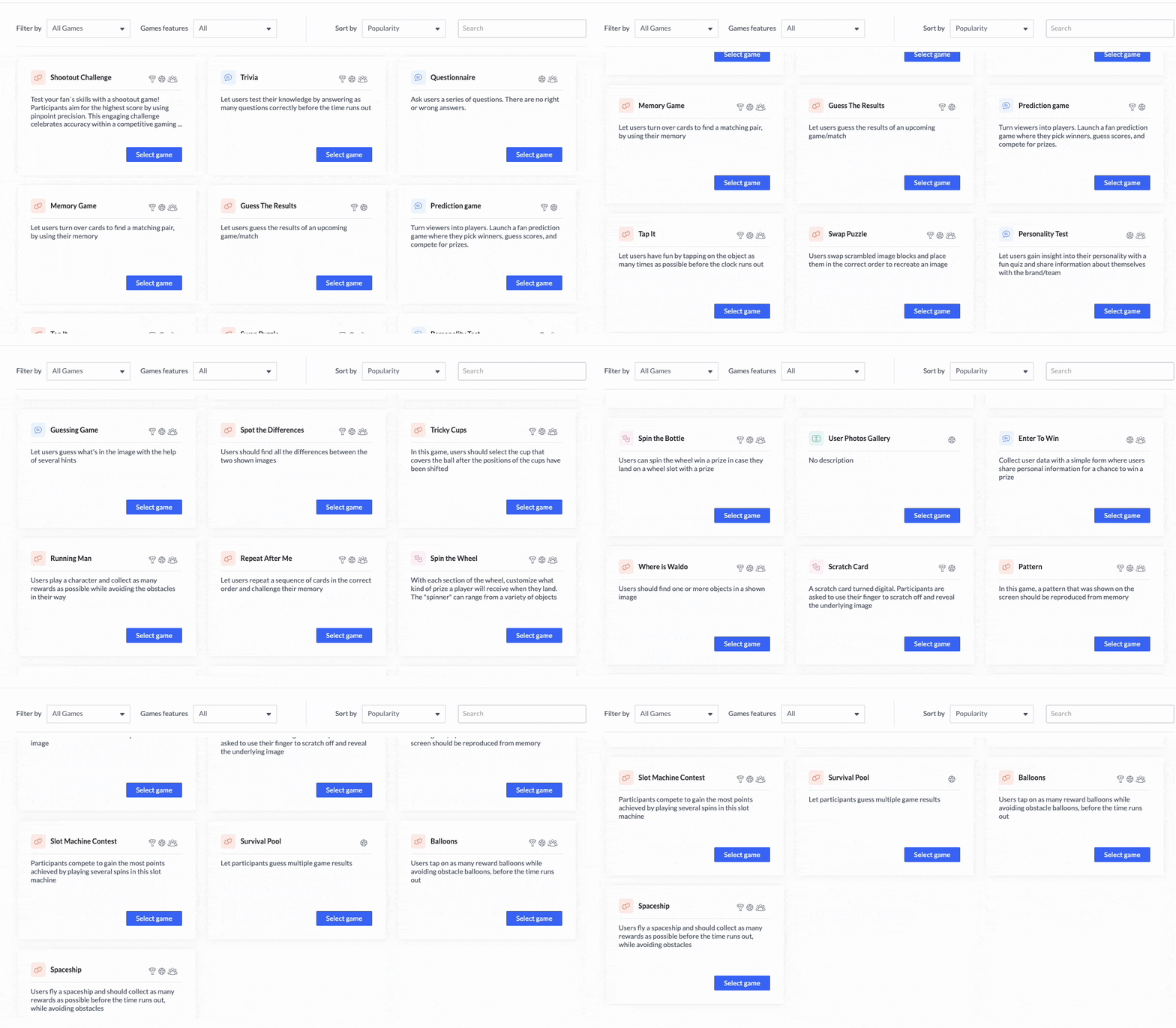
You will see a library of over 20 mini-games.
Select a game and configure its settings (branding, scoring, rules, etc.).
Step 4: Customize and Add Content
Questions & Answers: Define multiple-choice, free-text, or single-selection answers.
Media Elements: Upload images, videos, or logos.
Timing & Scoring: Set countdowns, point values, and difficulty levels.
Learn more about performance tracking in SINGLE WIDGET.
Publishing & Sharing
Sharing your activations with fans is a straightforward process. Activation Engine offers a variety of mediums to choose from, making it easy to engage your audience, whether it's through a direct link, social media messenger apps, QR codes, your website or app, or even jumbotron screens at venues. In this article, you will unlock the available options we provide.
Learn more about performance tracking in Publish Activation.
Tracking Performance
After publishing, track performance using Activation Summary Overview:
Impressions & Engagement: View how many users interacted.
Completion Rates: See drop-off points.
Leaderboard (if applicable): Track top participants.
Learn more about performance tracking in Campaigns and Activation Insights.